


|
TL;DR Logos’ new Bible Study Builder makes it easy to create discussion questions—either manually or with AI—helping pastors, teachers, and small group leaders build studies faster and smarter. 1. Available in all Logos subscriptions. 2. Add, edit, and reorder question “blocks” with notes. 3. Search your Logos library for ready-made questions. 4. Use AI to instantly generate customizable questions. 5. Style text, organize studies, and save time preparing lessons. |
This article is a guest post from Randy A. Brown. It includes the author’s affiliate links.
If you’re a pastor, professor, or small group leader, you’re going to want to get your hands on this exciting new feature coming soon from Logos. It’s called Bible Study Builder.
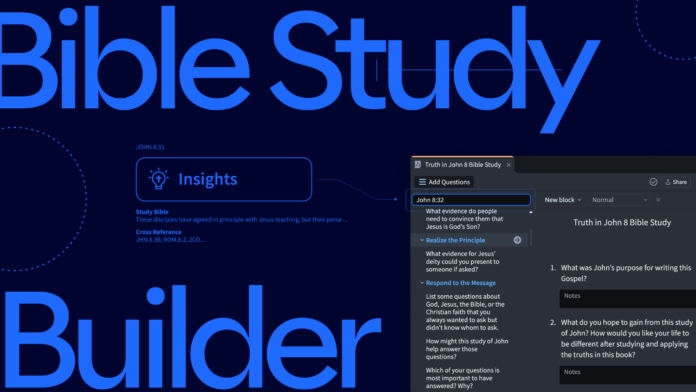
Bible Study Builder builds Bible study questions that are great for classes, small groups, personal study, and more. You can build the questions manually or use the AI tool to build them automatically.
In this article, we’ll take a close look at the Bible Study Builder and see how easy it is to build a Bible study.
Where to find Bible Study Builder
The new Bible Study Builder will be available in all Logos subscriptions launching later this month.
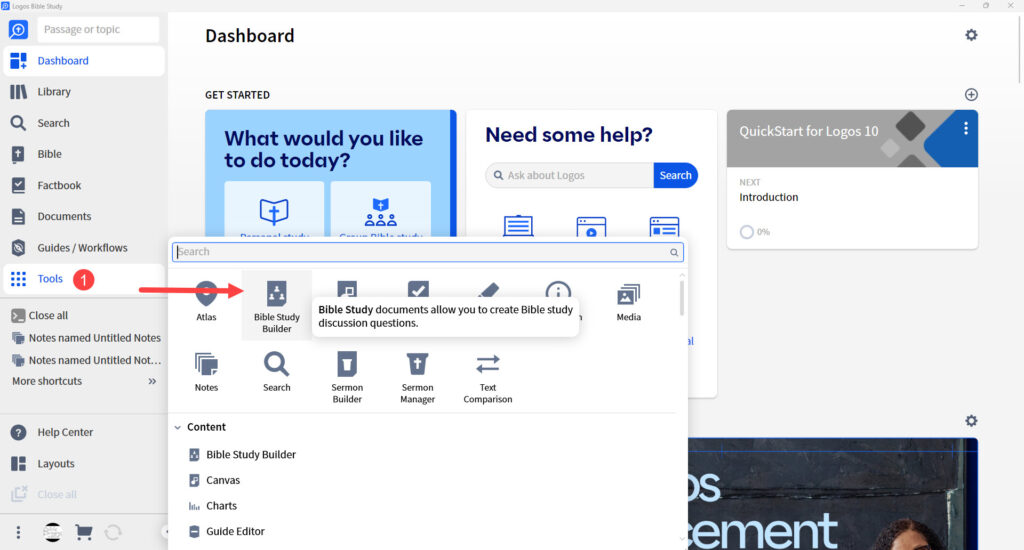
Once you’re subscribed, you’ll find the Bible Study Builder within the tools menu.
1. Click the Tools icon in your Logos menu.
2. Click the Bible Study Builder icon in the popup.
How to use Bible Study Builder
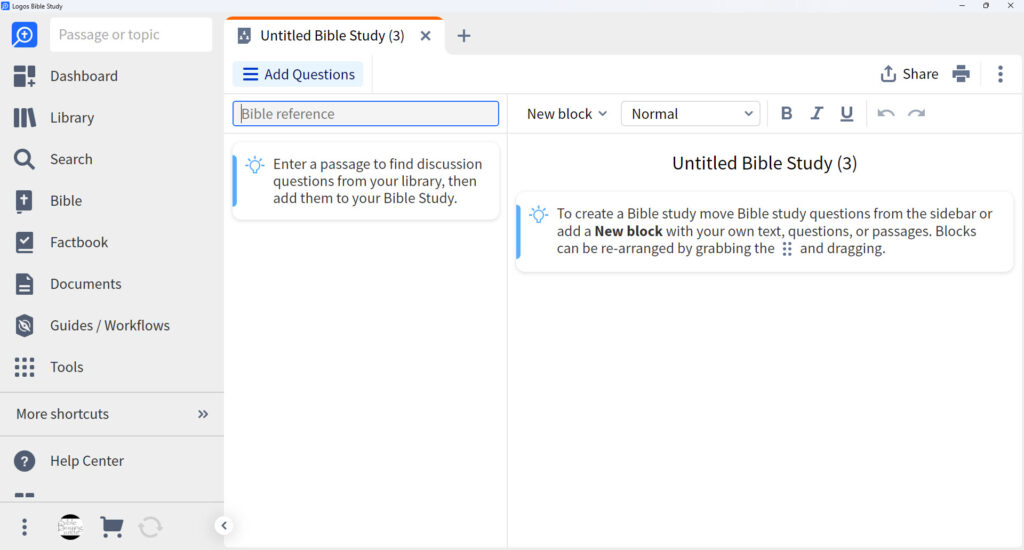
The Bible Study Builder includes an editor where you’ll add and edit questions. The questions are presented as blocks. You can add questions by searching your Logos library and adding them manually or adding them automatically using an AI tool. You can edit the questions, add more, delete them, etc.
Rename the Bible study
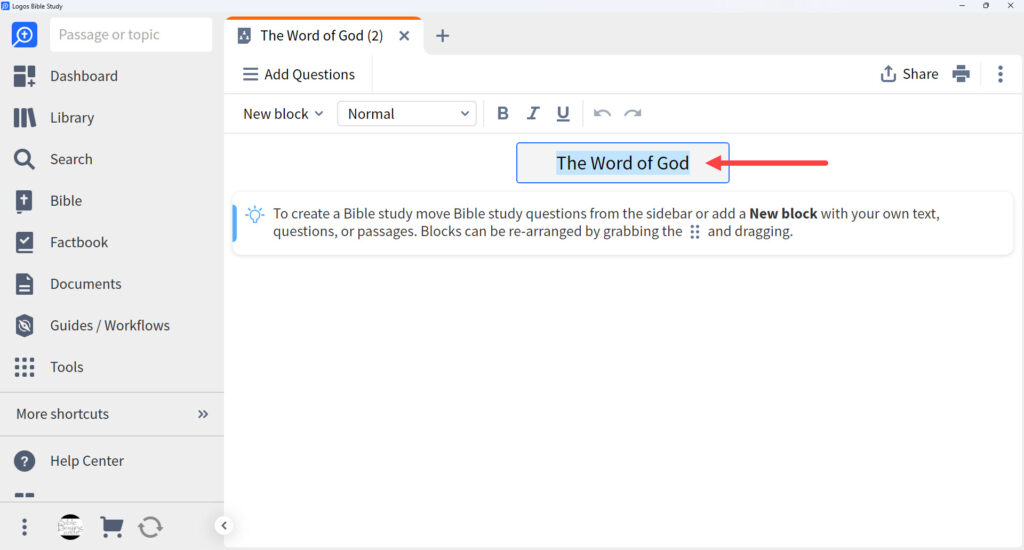
Name the Bible study anything that makes sense to you. To rename it, click on the label to highlight it and type the name you want.
Add a new block
Select New Block and choose the type of block you want from the drop-down box. Add regular text or any type of heading. You can change the heading type later, if you want.
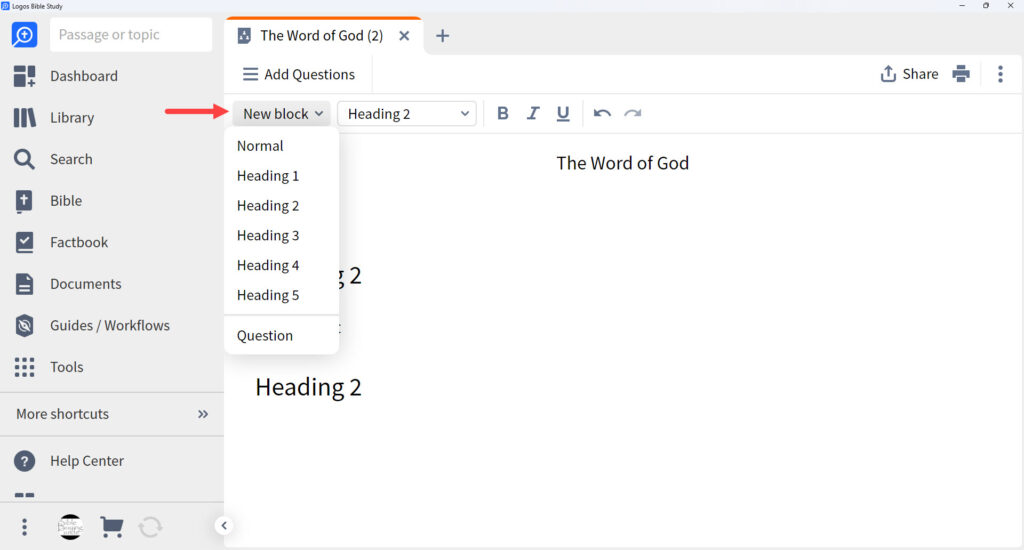
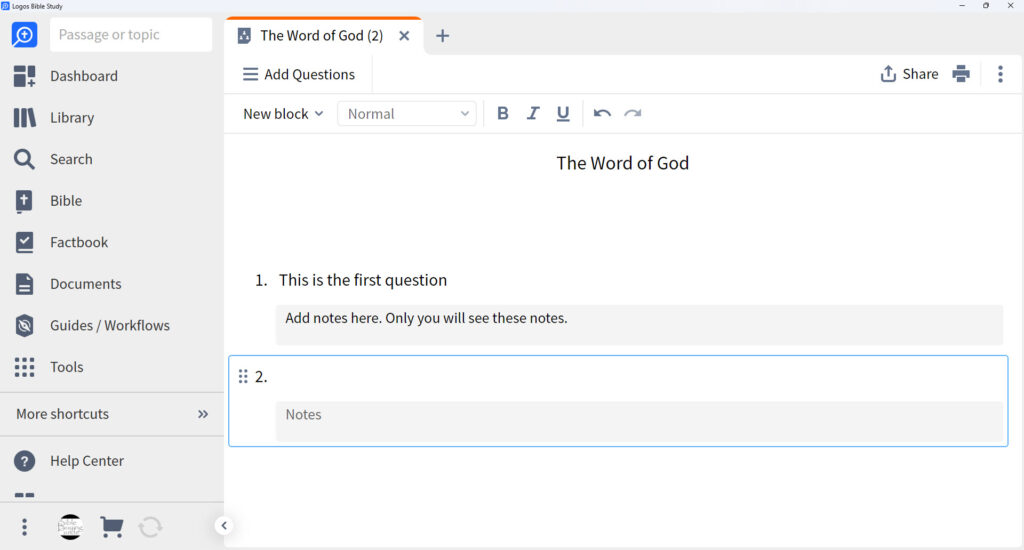
You can also manually add a new question from this list. The question will include a number. Enter the text for the question next to the number. Under the question is a field for notes. The notes are only visible to you unless you choose to show them.
Reorder the questions
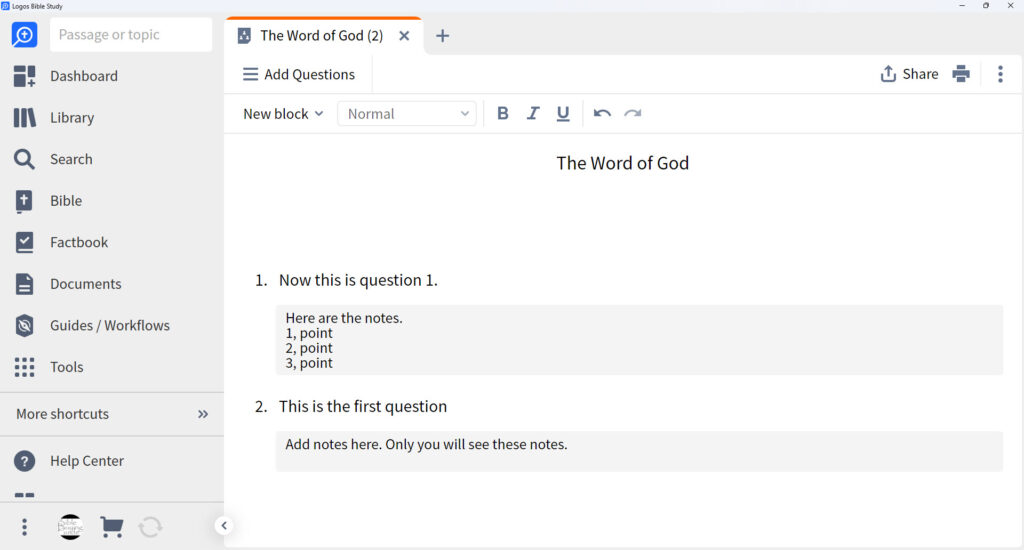
You can drag and drop the question if you want it in a different order. Grab the dots next to the number with your mouse to move the block. Once you drop the block where you want it, they’ll automatically renumber themselves. In this example, I’ve added text to the second block and then moved it to position 1. It’s now re-labeled as question 1.
How to find discussion questions
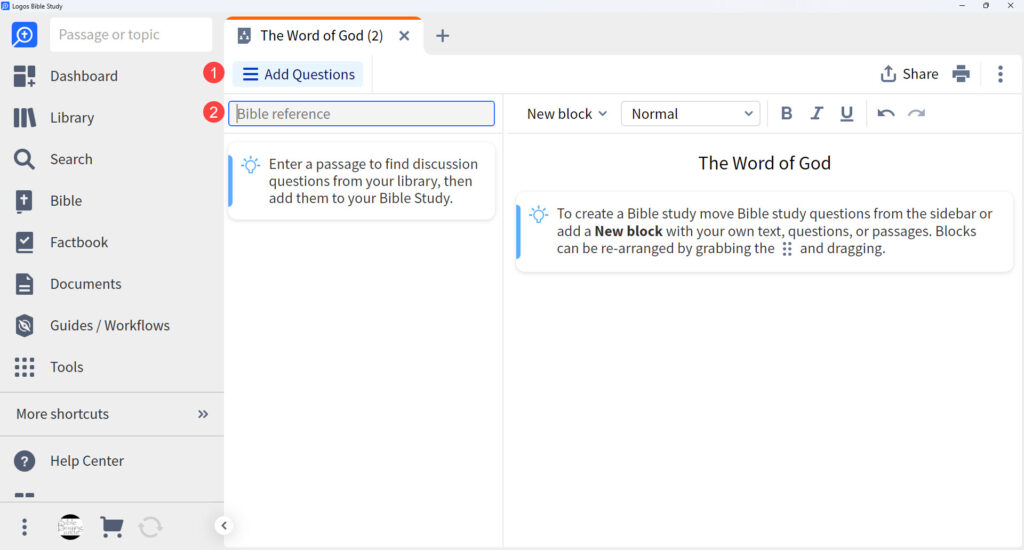
A question tool is on the left of the Bible Study Builder window. If it’s not visible, click Add Questions in the upper left to open its window. Here, you can search your library to add questions. You can also use AI to search resources in your library and develop the questions automatically.
Search your library
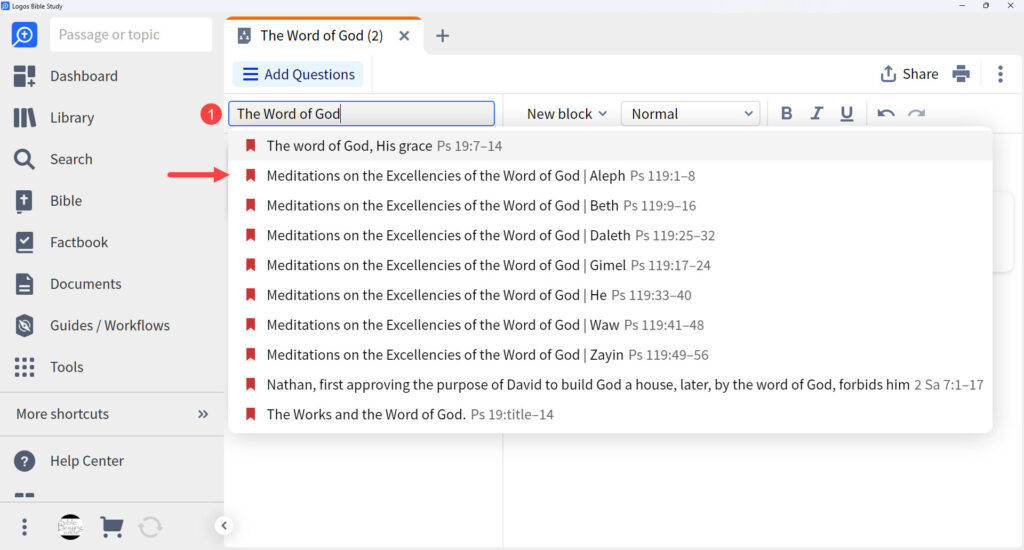
The best way to find questions is by searching your library. To find your questions, simply enter a Bible reference or passage into the search box. You’ll see a list of suggestions as you type. Select a suggestion that works best for your needs. For my example, I’ve searched for The Word of God.
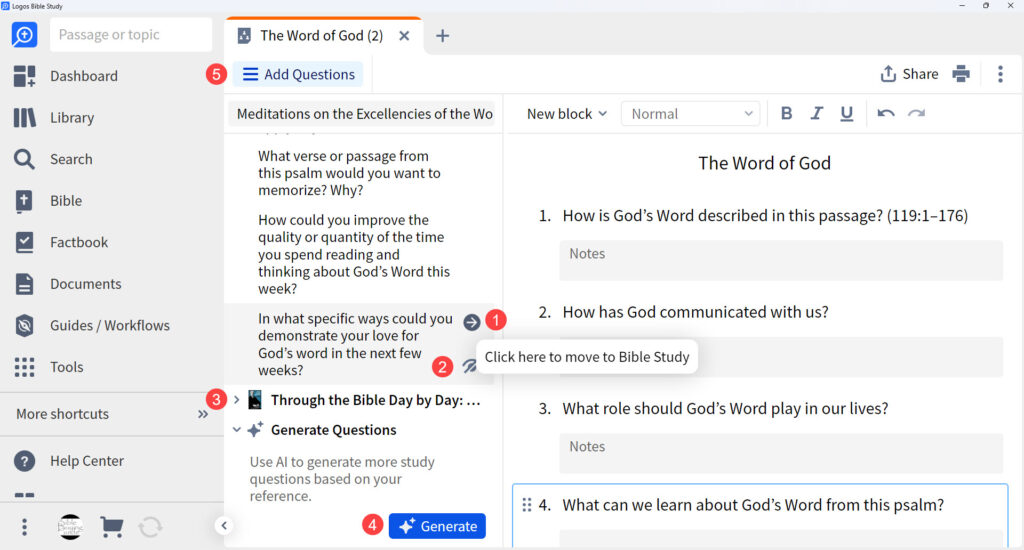
The results provide questions within the dropdown that identify the resource used. You can hide any question or add it to the editor by clicking the arrow. Questions are placed under their resources. Show or hide them by clicking on the resource’s title. Add more questions by clicking the Generate button (see the next section). Close the questions by selecting Add Question again.
Generate questions with AI
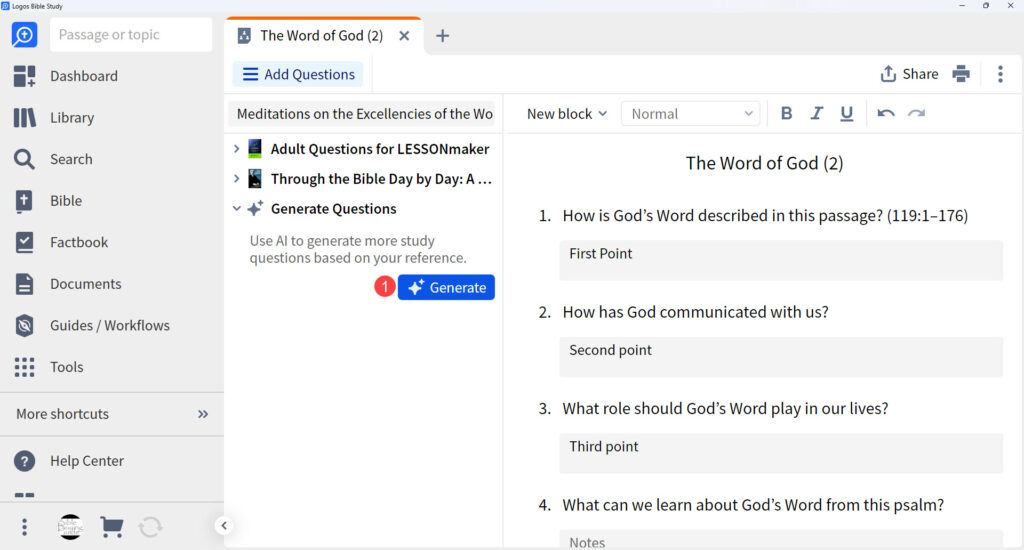
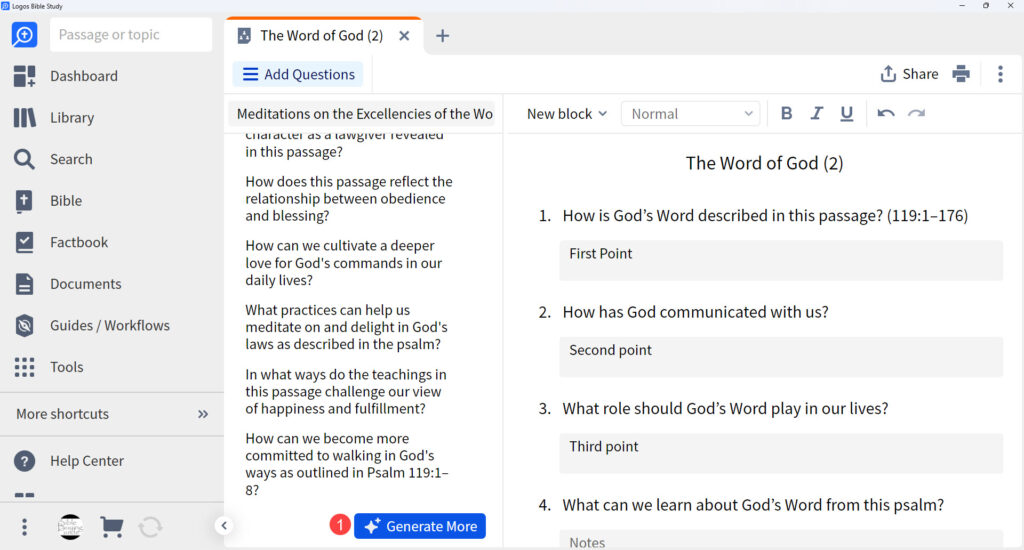
When you search your Logos library for questions, you’ll find a button at the bottom of the results. This is the AI tool that will generate questions for you. Simply click the Generate button to see a new list of questions.
The new list of questions appears under the AI tab within your list. As with questions from your library, add any question to your Bible study by clicking the arrow. These questions are also editable.
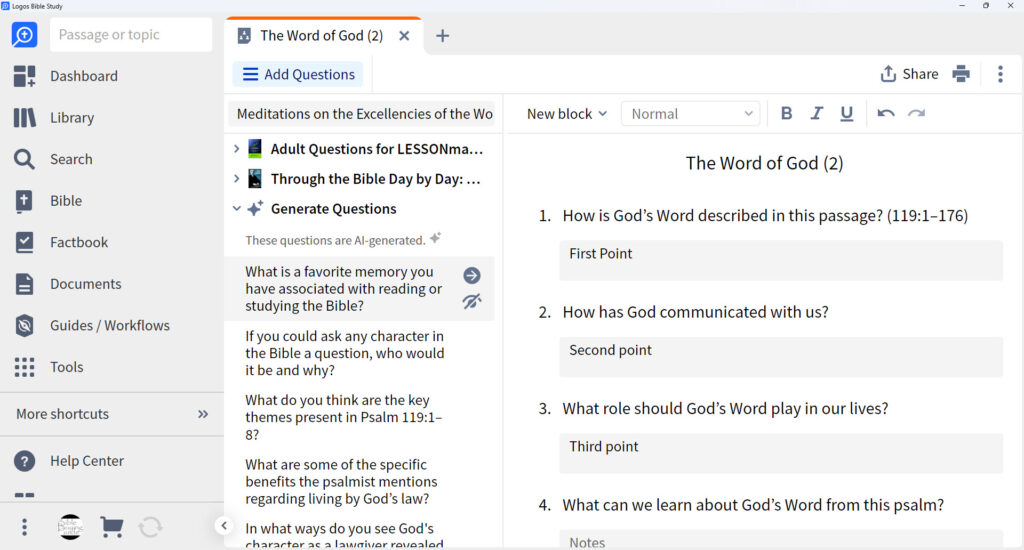
If you want more questions, click Generate More at the bottom of the list.
Style the text
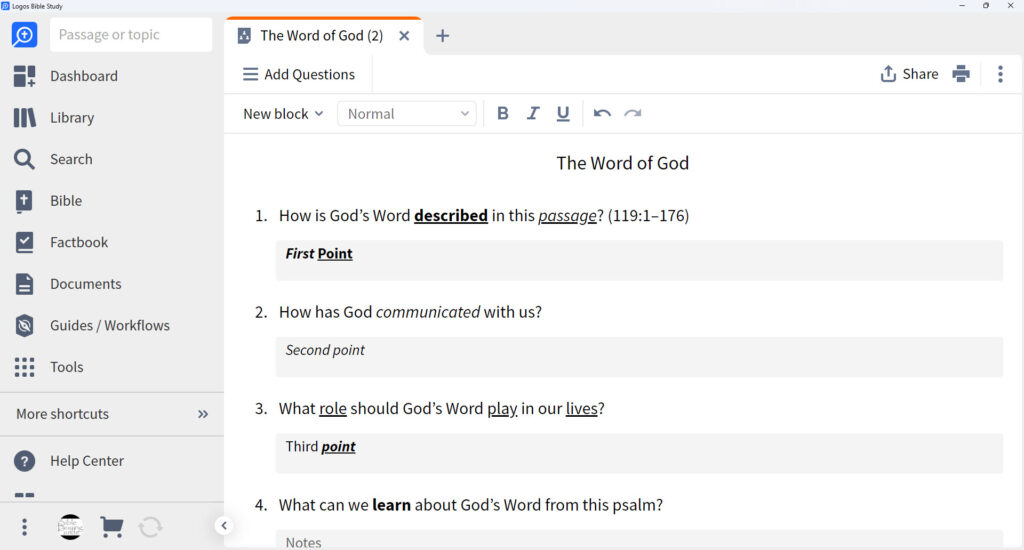
The text editor includes all the standard style options such as bold, italic, and underline. You can use them together or independently. You can also click the undo and redo icons to undo or redo your changes.
How to share or print the Bible study
Once you’ve completed the Bible study questions, you can share them with your class.
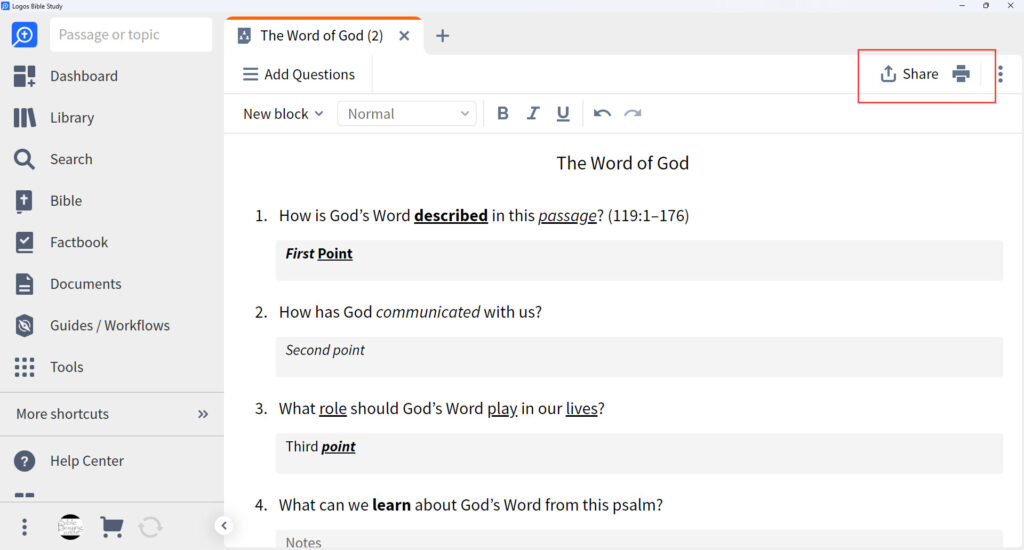
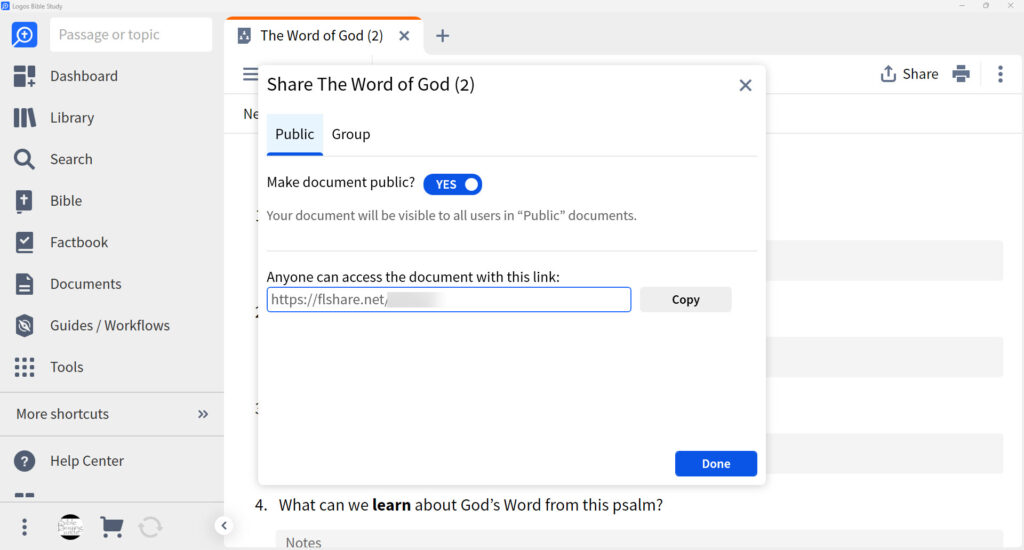
Click the Share icon to share with the public or a group of your choosing. Simply select the tab you want. For public sharing, you’ll get a shareable link. For group sharing, you’ll choose your group by searching. The notes will not show.
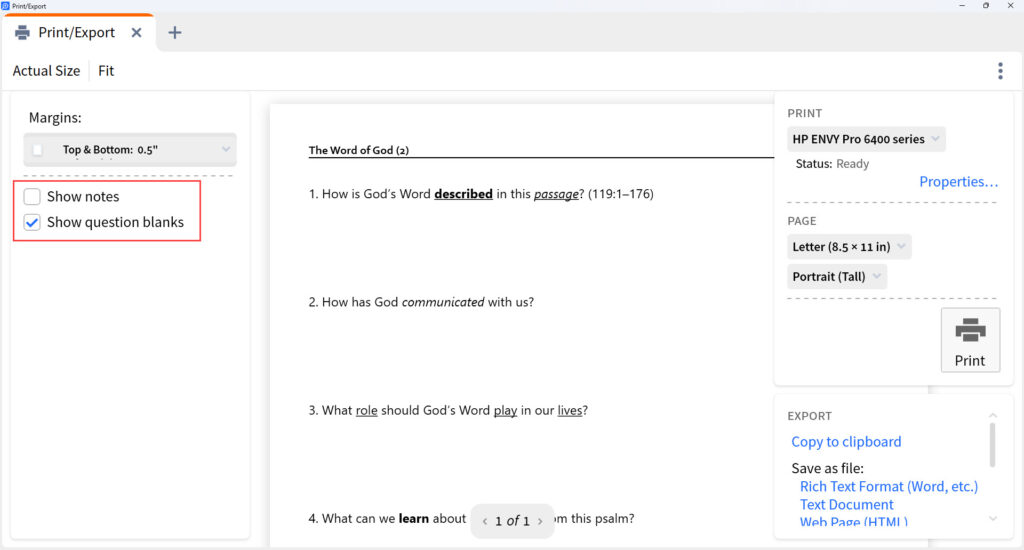
Click the Print icon to print the questions. You can choose to show the notes or not. You can also add space between the questions to provide room for answers.
Where to find your Bible studies
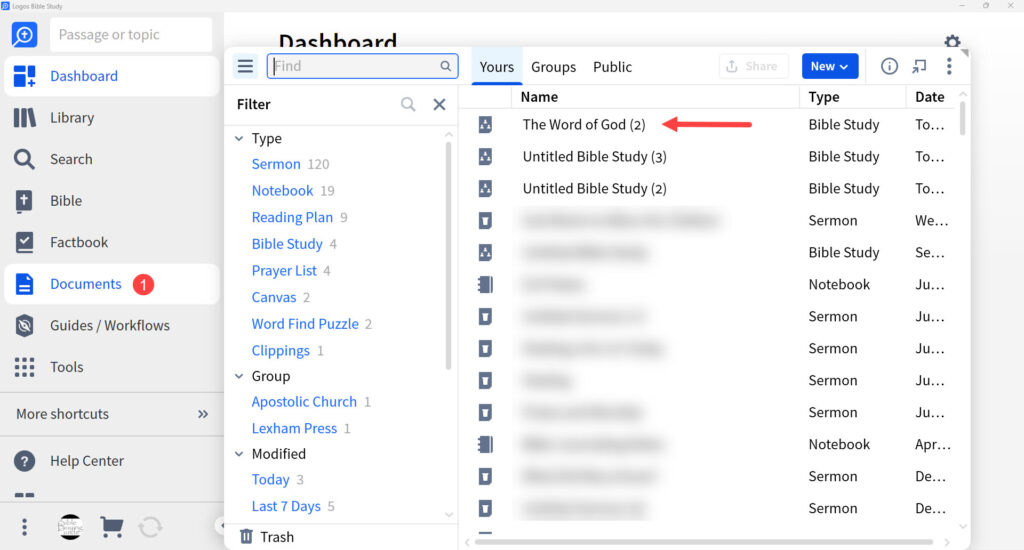
Your Bible studies are found in the documents. Simply click Documents in the Logos menu. You can search or sort them by name or type.
Closing thoughts on Bible Study Builder
I love how the new Logos Bible Study Builder works. It’s easy to add questions manually, but it also provides an easy-to-use AI tool allowing you to add questions with a click of a button. This takes the guesswork out and streamlines the process. I suspect this will become one of the most-used features in Logos.
Get Logos today to go deeper into God’s Word
Save up to 10 percent on your first purchase of Logos 10 and choose five free books. Logos 10 owners will receive discounts and special perks when the new subscriptions are released this month. Don’t miss out!