


TL;DR
Canva’s “Magic AI” tools let anyone—no design skills needed—automate tasks like resizing, background removal, element editing, animations, and text improvements to produce professional visuals fast.
|
Welcome to Canva
Welcome to the world of Canva, a versatile graphic design tool that can help you create stunning visuals for your church’s needs. Whether you’re looking to design flyers, social media posts, presentations, or even church bulletins, Canva has features that will make your work easier and more impactful.

What Are Magic AI Tools?
Magic AI tools in Canva use artificial intelligence to simplify and automate various tasks, making design accessible for everyone, regardless of skill level. These tools can help you save time, ensure consistency, and create professional-quality designs effortlessly.
9 Canva Magic AI Tools And Functions
1. Magic Resize
What Is It?
Magic Resize allows you to quickly adapt a design to various sizes and formats without starting from scratch. For example, you can turn an Instagram post into a Facebook post, flyer, or presentation slide with just a few clicks.
How to Use It?
- Create or open a design: Start with any design template or create one from scratch.
- Click on “Resize”: You’ll find this option in the toolbar at the top.
- Select the formats: Choose multiple sizes and formats from the available options.
- Apply: Click “Resize” and Canva will generate new designs in the selected sizes.
Practical Application
If you’re creating a flyer for a church event, Magic Resize can also generate social media versions to promote the event online, saving you from the hassle of making multiple designs by hand.
2. Magic Eraser
What Is It?
Magic Eraser is a simple tool for removing unwanted elements from your photos. Whether it’s a person in the background, a piece of text, or any other object, you can erase it seamlessly.
How to Use It?
- Upload or choose a photo: Start with the image you need to edit.
- Select “Magic Eraser”: This option is available in the edit toolbar.
- Brush over the area: Use the brush to highlight the item you want to remove.
- Apply: Click “Apply” and the unwanted element will be erased.
Practical Application
If you have a beautiful photo from a recent church event but there’s an unsightly object in the background, Magic Eraser will help you remove it, making the image perfect for your promotional materials.
3. Magic Edit

What Is It?
Magic Edit allows you to make precise adjustments to specific elements of your design, such as color changes, brightness adjustments, and more. This tool gives you granular control over the appearance of individual parts of your design.
How to Use It?
- Upload or choose a design: Start with the image or design you need to edit.
- Select “Magic Edit”: This option is available in the edit toolbar.
- Select the element: Use the Brush option or Click option to define the specific element you wish to edit.
- Adjust settings: Describe what you want to edit or change. You can even replace the item with something else AI generated.
- Pick your option: 4 options will be generated, select the option you want, and your image will be changed with the AI element.
- Apply: Save the changes to see the updated design.
4. Magic Animation
What Is It?
Magic Animation makes your designs come to life by adding movement to elements in your design. This is perfect for creating engaging video content for social media or presentations.
How to Use It?
- Create or open a design: Start with your design template.
- Select an element: Click on the object you want to animate.
- Click on “Animate”: This option will appear at the top toolbar.
- Choose an animation: Select from various animation styles and effects.
- Apply: Click “Apply” to see the animation in action.
Practical Application
Enhance your Sunday service announcements with dynamic, eye-catching animations that capture the attention of your congregation.
5. Magic Presentation
What Is It?
Magic Presentation automatically generates professional-looking presentation slides based on the content and theme you input.
How to Use It?
- Open “Magic Presentation”: Choose it from the main menu or your toolbar.
- Input your content: Add text, themes, and any specific guidelines you have.
- Generate slides: Canva will use AI to create a complete presentation.
- Customize further: You can make any additional edits to better match your needs.
Practical Application
Create compelling sermons or meeting presentations that convey your message clearly and beautifully without spending hours on design.
6. Magic Text
What Is It?
Magic Text provides intelligent text suggestions and enhancements for your projects. Whether you need help with grammar, wording, or even text ideas, this tool has you covered.
How to Use It?
- Add text box: Start by adding a text box to your design.
- Select “Magic Text”: Available in the text editing toolbar.
- Get suggestions: Input your initial text or keywords.
- Apply suggestions: Review the suggestions and apply the ones you like.
Practical Application
Craft compelling messages for church bulletins, newsletters, or social media posts with refined and engaging text suggestions.
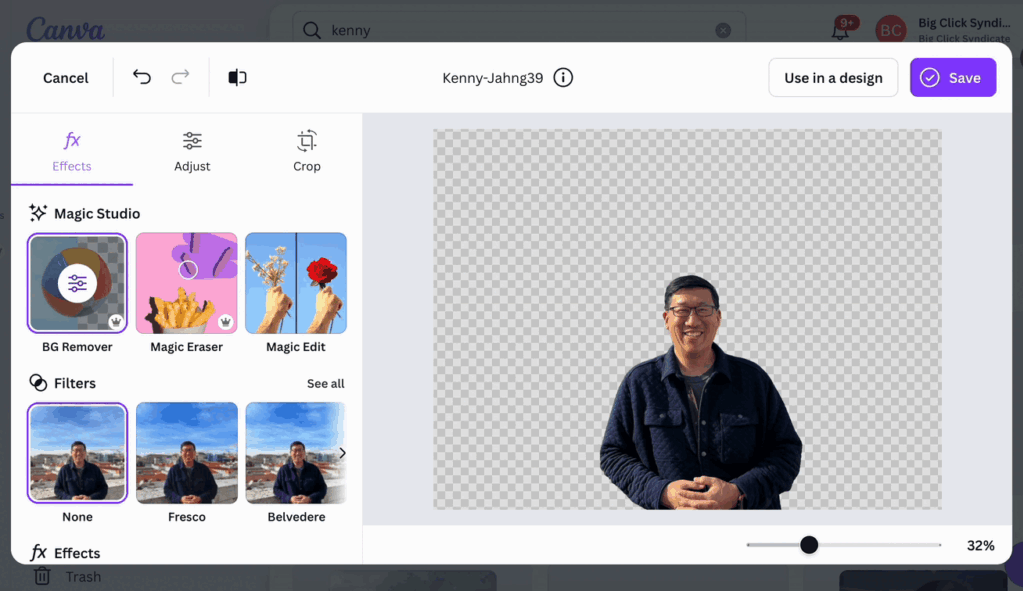
7. Magic Background Remover
What Is It?
Magic Background Remover allows you to isolate the main subject of a photo by removing the background. This is useful for creating profile pictures, product images, or spotlighting key figures in your designs.
How to Use It?
- Upload your photo: Start with the image you want to edit.
- Select “Background Remover”: Available in the edit toolbar.
- Apply: Click on the tool and Canva will automatically remove the background.
Practical Application
Create professional-looking images of church leaders or volunteers by placing them against clean, customizable backgrounds.
8. Magic Grab
What Is It?
Magic Grab automatically detects and selects objects within an image, making it easy to move, resize, or edit specific elements without affecting others. This tool is particularly effective for complex images where manual selection would be time-consuming.
How to Use It?
- Upload or choose a photo: Start with the image you need to edit.
- Select “Magic Grab”: This option is available in the edit toolbar.
- Click on the object: The tool will automatically detect and select the object.
- Edit as needed: Move, resize, or make changes to the selected object.
Practical Application
Effortlessly adjust individual elements in event photos or promotional images to create a cohesive and polished final product.
9. Magic AI Filters
What Is It?
Magic AI Filters apply advanced, AI-powered enhancements to your images, making them look professionally edited. These filters can adjust colors, brightness, contrast, and more in a single click, saving you time and effort.
How to Use It?
- Upload a photo: Start with the image you need to enhance.
- Select “AI Filters”: Accessible in the edit toolbar.
- Choose a filter: Browse through the AI-powered options and select one that best suits your needs.
- Adjust: Fine-tune the intensity of the filter to your preference.
- Apply: Save the changes to apply the filter to your photo.
Practical Application
Quickly improve the quality of event photos, member portraits, or promotional images to ensure a professional appearance across all your church’s visual communications.
Final Thoughts
By leveraging Canva’s Magic AI tools, you can greatly improve the visual and communicative impact of your church’s materials. These tools are designed to make graphic design accessible for everyone, regardless of prior experience. Whether you’re creating event flyers, social media posts, or presentations, Canva’s Magic AI features will help you produce professional, eye-catching content that resonates with your congregation.
Feel free to explore these tools and start experimenting with your designs—soon you’ll find yourself mastering Canva and making the most out of its capabilities for your church’s various needs. Happy designing!