

HomeAI for ChurchesHow To Fix AI-Generated Text Errors With Canva AI

How To Fix AI-Generated Text Errors With Canva AI

-

TL;DR: Canva’s tools (like Magic Eraser + “Grab Text”) let you correct or replace flawed text in AI-generated images, turning garbled labels or signs into clean, editable typography.
  1. Begin with an AI-generated image (e.g. from Leonardo.ai) and import it into Canva.
  2. Use Canva’s Magic Eraser to remove or hide the problematic text from the image.
  3. Then use Canva’s “Grab Text” / text recognition feature to extract and convert the erased area into a fresh text box you can edit and style.

This week, Kenny Jahng demonstrates how to use AI tools to create custom images and then fix any bad text generated within it.

BEFORE, created with Leonardo.ai. Prompt: Crowd of people cheering in the streets holding up signs with the text “5,432+”

leonardo Crowd of people cheering in the streets holding up sign

AFTER fixed with Canva AI – Magic Eraser Tool
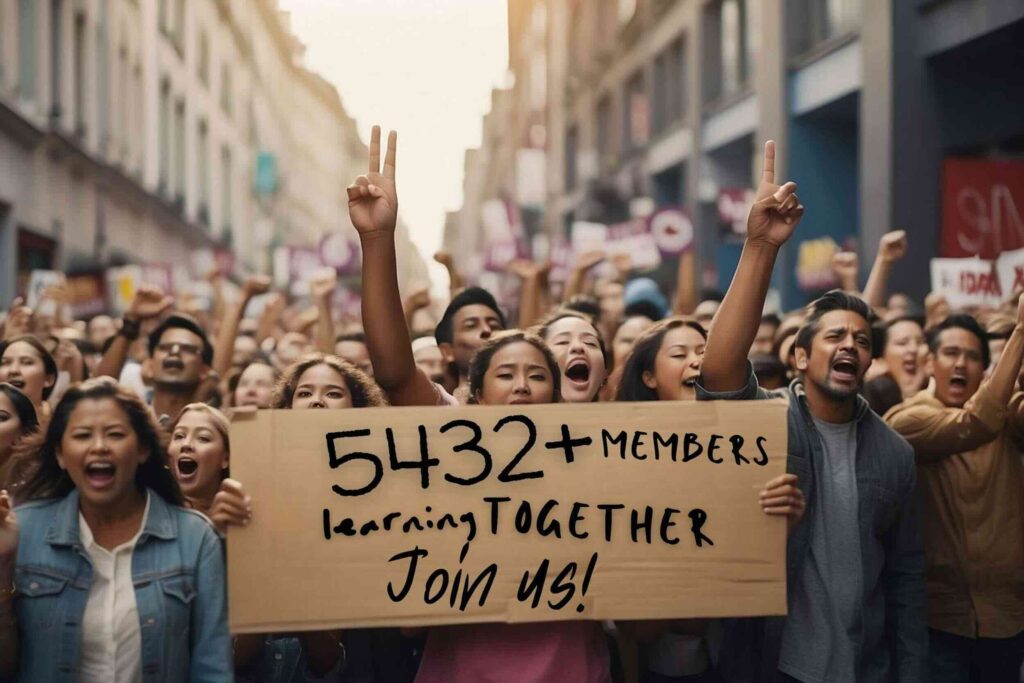
WeAre5432strongJoinUs

AI Tools used in this video walkthrough:

Learn more about how to use AI for good in your church:

Training Library: http://www.AIforChurchLeaders.com
AI primer ebook: http://www.aiforchurchleaders.com/ebook
More Articles: https://churchtechtoday.com/topic/resources/artificial-intelligence
More tips: http://www.instagram.com/churchtechtoday
Connect with Kenny Jahng, Editor-in-chief at CTT: http://www.instagram.com/kennyjahng


Kenny Jahng
Kenny Jahnghttps://www.kennyjahng.com
Kenny Jahng is Editor-In-Chief at ChurchTechToday.com. He's also the founder of AiForChurchLeaders.com. Kenny is a Certified StoryBrand Copywriter Guide and founder of Big Click Syndicate, a strategic marketing advisory firm helping Christian leaders build marketing engines that work. You can connect with Kenny on LinkedIn, TikTok, or Instagram.

LEAVE A REPLY

Please enter your comment!
Please enter your name here

Featured Posts

LATEST POSTS