


This article is a guest post from Randy A. Brown. It includes the author’s affiliate links.
The new Logos AI Summarize tool (currently in early access) is a game changer for Bible study. I’m excited to give you a sneak peek at what will be available to everyone this fall.
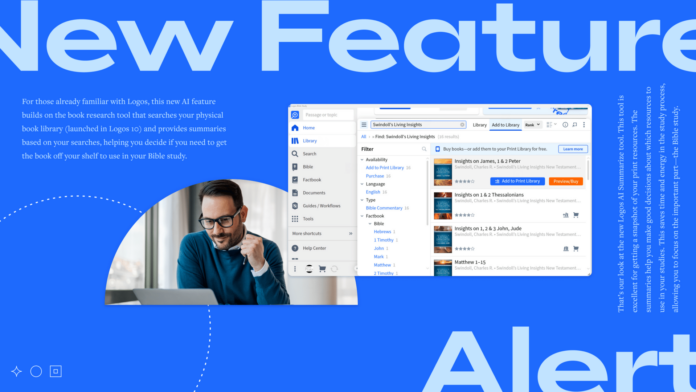
For those already familiar with Logos, this new AI feature builds on the book research tool that searches your physical book library (launched in Logos 10) and provides summaries based on your searches, helping you decide if you need to get the book off your shelf to use in your Bible study. This is a great way to save time by only grabbing the physical books that can help you the most. In this post, we’ll see how to use the forthcoming AI book summary tool to help you with your Bible studies.
If you’re not familiar with Logos yet, here’s a helpful place to start. Now to the good stuff.
How the AI book summary tool works
Before you can use the AI Summarize tool with your print library, you’ll need to add your physical books to your Logos library. You can add them from your desktop or mobile device. Fortunately, this process is simple. Here’s a look at both methods.
Add a physical book to your Logos library from desktop
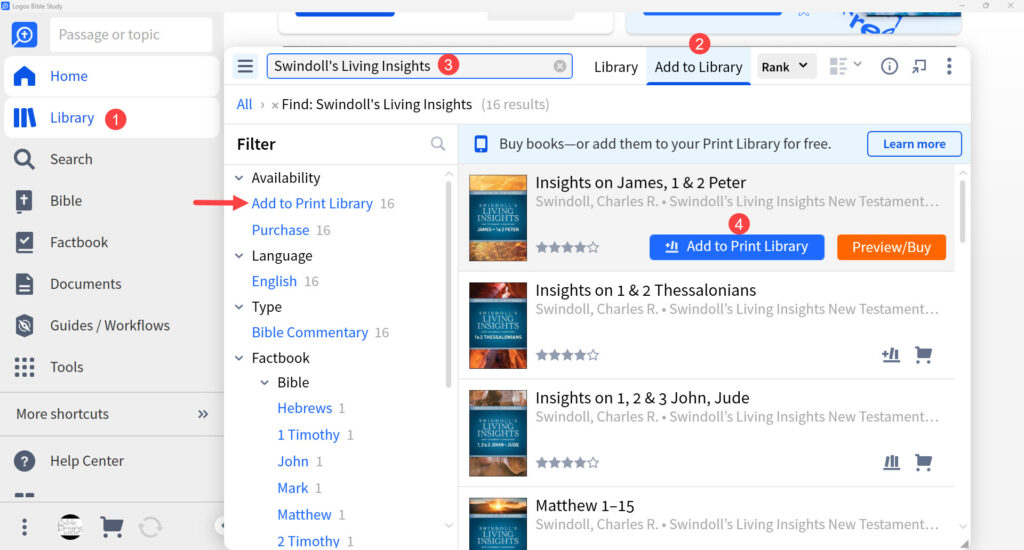
- First, you’ll need to add the physical book to your Logos library. Click the Library icon in your Logos menu and select Add to Library.
- Next, search for the book you want to add. Use the search box or the filters to find your book. Use the filter Add to Print Library if you want to narrow your search.
- Finally, hover over the book you want to add and click Add to Print Library. Now, this book is available to search from Logos.
- Repeat this process for every physical book you want to add to your library.
Add a physical book to your Logos library from mobile
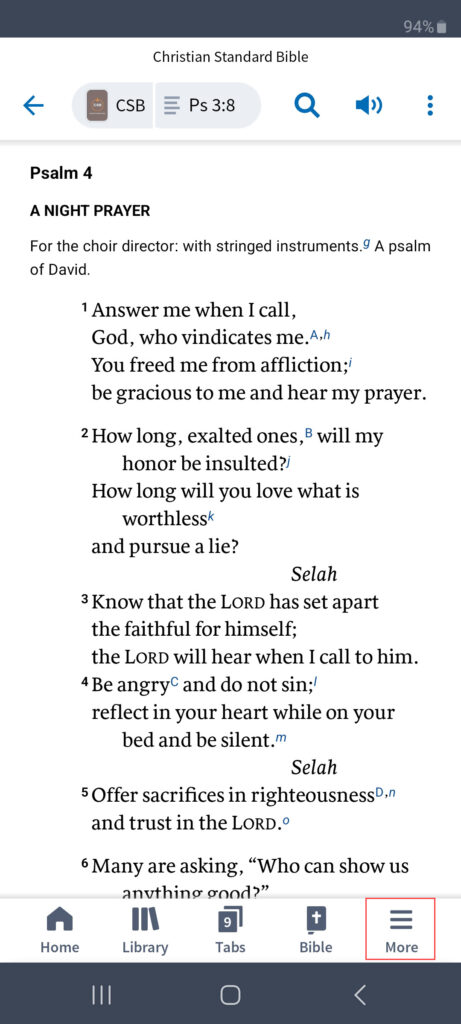
- Open the Logos app on your phone or tablet and select the hamburger menu icon in the bottom right corner of your screen to open the menu.
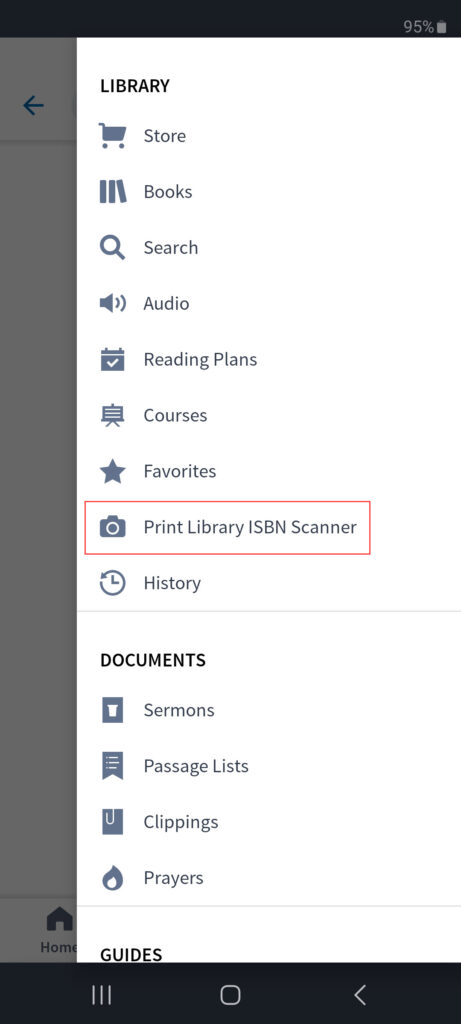
- Select Print Library ISBN Scanner from the menu.
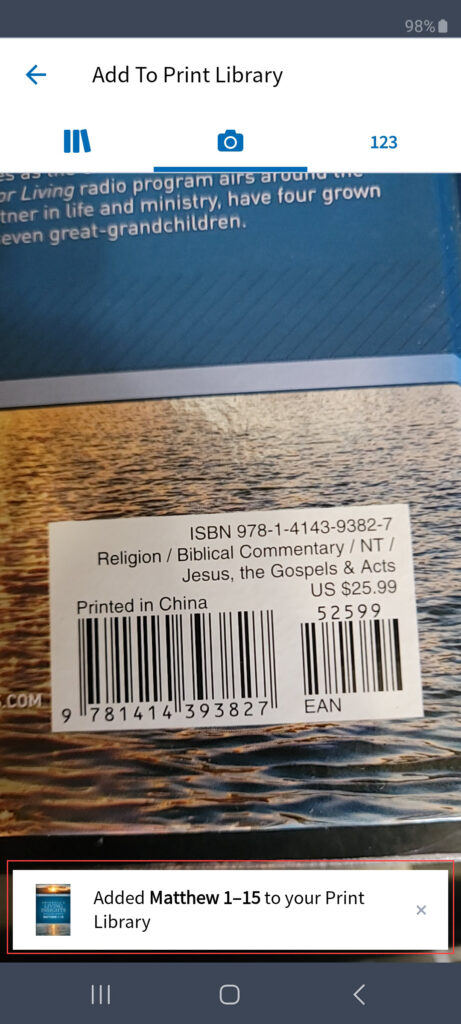
- Use the scanner and scan the ISBN code. This will enable the camera to search for a bar code. Once you’ve scanned the barcode, the book will automatically be added to your Logos physical library.
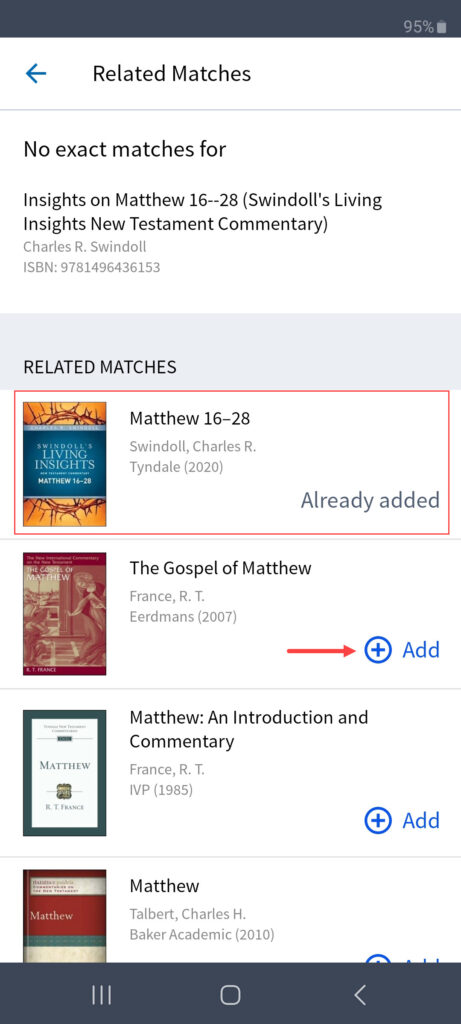
- Logos will inform you if there are no exact matches and provide a list of similar books. In this example, Logos found another edition of my book. It will also show if the book is already added to your library. Click Add if you want to add any of the books to your library.
How to see an AI summary of your print book
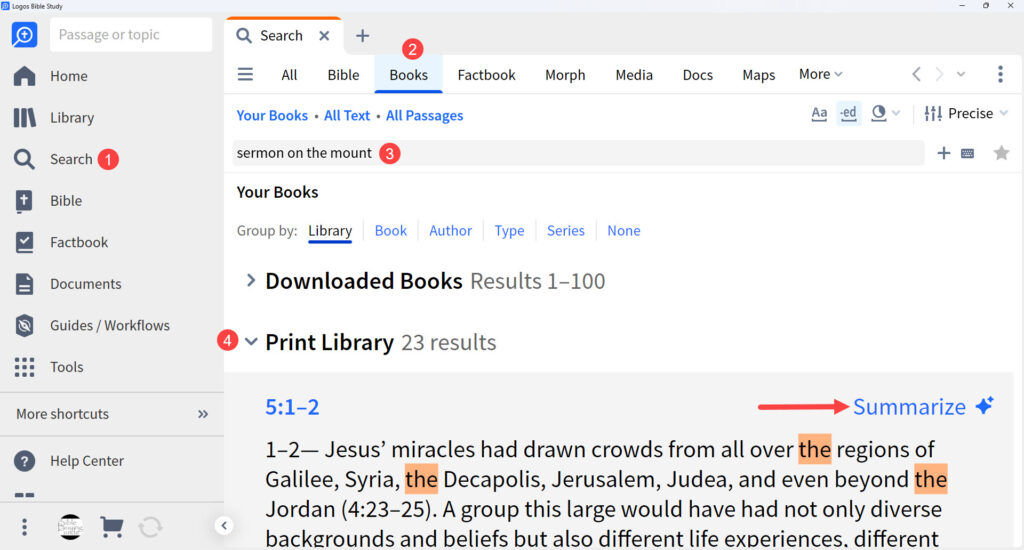
To see an AI summary of your print book, first select the Search icon from the Logos menu. Next, choose the Books filter at the top of the search bar and enter your search into the search field. Once you see the results, with Group by: Library selected, click Print Library to see the results from your printed books. Find the passage you’d like to see and click Summarize on the right above the text. For this example, I used the search term “sermon on the mount”.
You’ll see the AI summary of your selection. It will inform you that it’s an AI-generated summary and there could be inaccuracies. You can hover over the reference at the bottom to see a description of the book. It shows the page number, so you can quickly turn to the page. You can also clear the AI summary. That’s it! It’s that simple!
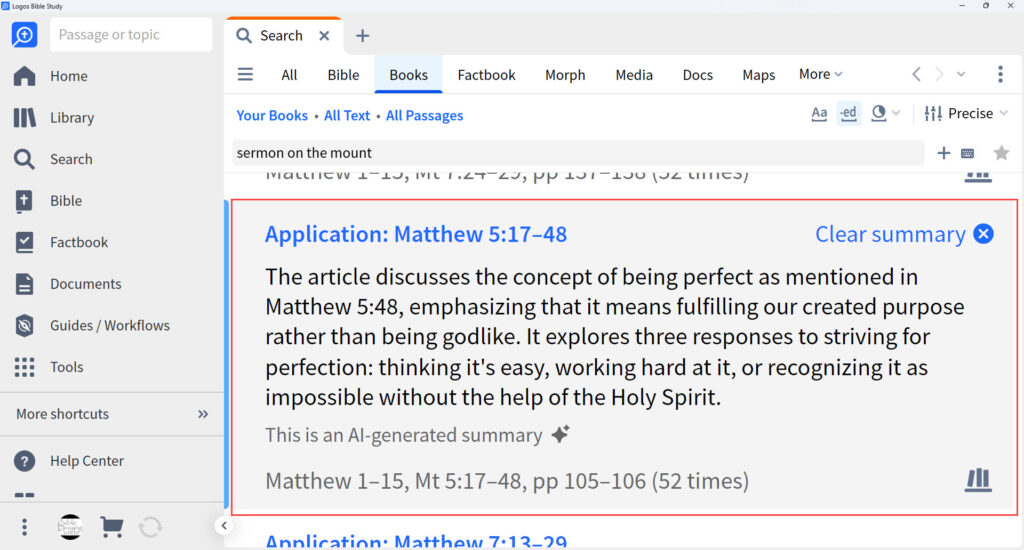
In this example, I used “sermon on the mount” as my search term. The AI Summarize tool summarized a large passage, making it easier to digest. The summary was accurate and easy to understand. This makes it easy to decide if this is a book I want to use in my studies for this passage.
I’m excited to use this tool. I don’t have a lot of room to store books, so they’re sometimes hard to reach. Knowing ahead of time which books to grab saves me a lot of time and physical effort. Even if the books are easy to reach, this saves me from the mental distraction, which helps keep me focused.
Final thoughts on the new AI book summary tool
That’s our look at the new Logos AI Summarize tool. This tool is excellent for getting a snapshot of your print resources. The summaries help you make good decisions about which resources to use in your studies. This saves time and energy in the study process, allowing you to focus on the important part—the Bible study.
Get Logos today to go deeper in the Word
Save up to 10 percent on your first purchase of Logos 10 and choose five free books. Logos 10 owners will receive discounts and special perks when the new features release this fall. Don’t miss out!

I pray that it is all they say it is. Anytime you have to go to a camp to use a program…….thats a bit much.