


|
TL;DR The guide walks you through step-by-step how to set up Discord for using the Midjourney AI image generator so you can start creating custom AI images with a clean, private workspace. 1. Midjourney runs via Discord (rather than its own website). 2. Use a private channel and invite Midjourney to reduce noise from public threads. 3. The article includes screen-by-screen steps for beginners to get started. |
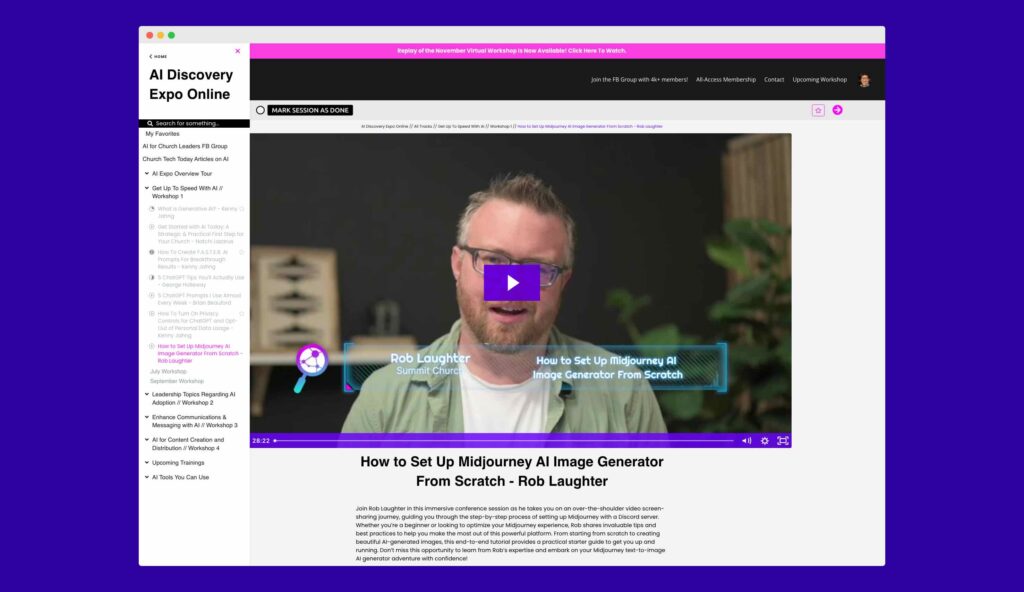
Here’s a great step-by-step tutorial for setting up Midjourney so that you can start using AI to generate amazing images.
It’s a bit of a nerdy process since Midjourney doesn’t have it’s own website where you use it like ChatGPT. You interact with it through Discord, which is a messaging platform that has tons of other uses.
You can see a showcase of images generated by Midjourney to see how amazing it is.
This is one of the best screen-by-screen tutorial videos I’ve seen that you can use to walk through the process yourself.
Now this is just the basic first step to get you started. . .
Once inside Discord you’ll see that it is a bit wild trying to follow and find your own “chat prompts” with MidJourney since there’s usually a pretty active thread running in the channel. That’s good and bad:
PRO: You can see what other people are creating and get inspiration for what you might do for your own projects.
CON: It’s hard to follow your own interactions and find it in the running chat thread.
There’s a solution for that: Set-up your own private channel and invite MidJourney to it so that you don’t have any clutter to worry about from the public.
BTW, in our AIforChurchLeaders.com video training library you can walk through that entire process to set this up for yourself.