

|
TL;DR Logos’ new AI tools make Bible study faster and more trustworthy by drawing only from your library and vetted resources—giving pastors and students reliable insights. 1. Search in natural language, not complex Boolean strings. 2. AI delivers outlines, illustrations, and applications from trusted sources. 3. Translation tool converts texts into other languages instantly. 4. Insights panel shows related books, passages, and guides. 5. Summarize passages or books for quicker prep. |
The new Logos has launched, bringing big changes to how we study the Bible and share what God teaches us with others. This change comes largely because of AI (artificial intelligence).
What is artificial intelligence?
I asked Gemini, Google’s AI chat tool, to explain artificial intelligence. It replied with the following:
Artificial intelligence (AI) is a broad field of computer science focused on creating systems capable of performing tasks that typically require human intelligence.
These tasks include:
- Learning from experience: AI systems can improve their performance on a task through experience, often using techniques like machine learning.
- Understanding natural language: AI can process and understand human language, enabling applications like chatbots and language translation.
- Recognizing patterns: AI can identify patterns in large datasets, leading to insights and predictions.
- Solving problems: AI can find solutions to complex problems, sometimes even outperforming humans in specific domains.
- Making decisions: AI can make decisions based on data and learned patterns, automating various processes.
What makes Logos’s AI more reliable?
For Bible students, Logos will help with the five tasks above. It takes the experience of the Logos user base to provide great results.
You can search using natural language instead of complicated Boolean operatives. The dataset that is your library will help you see patterns in Bible study material. These all solve problems for the Bible student who needs to learn what a passage means or what the Bible says about a topic. AI decides what to show you when you search or ask for insights and summaries of passages or references, and it provides material for Bible studies and sermons like outlines, illustrations, and applications.
Your Bible study results will come from a limited set of information, making it more accurate than firing up tools like ChatGPT, Gemini, or Microsoft CoPilot. You can rely on them more confidently because the results will come from your library and the Logos larger library of books.
We all own books that span multiple theological traditions that we may not always agree with. I’ve got books from Catholic and Orthodox traditions that I don’t believe reflect my Baptist evangelical worldview. However, since Logos does a great job of telling you where the conclusions come from, you can determine whether to trust the results in various AI tools.
So, let’s dive in and learn how Logos will help you study the Bible and share your results with a friend, small group, church, or crowd.
The new Logos resource toolbar
A few of the new AI features show up on the new Logos resource toolbar.
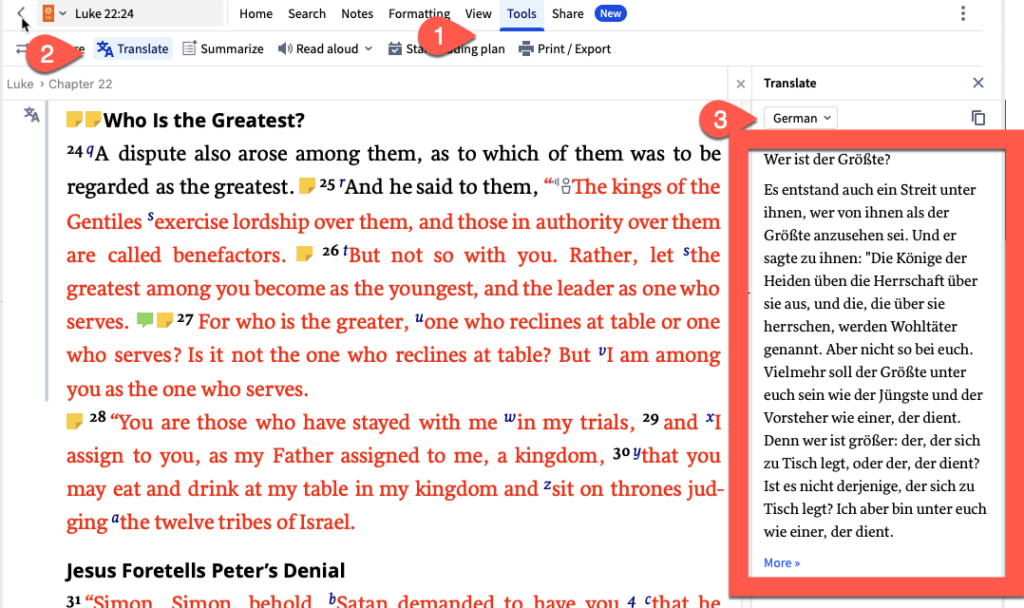
On the toolbar, you’ll see some familiar and new tools in the two rows. One AI feature added in version 10 comes from the Translate tool, which you’ll see on the new toolbar under the (1) Tools button. Click it to open a new sidebar where you can: (2) Translate from one language to another. For example, take an English text and choose (3) German from the sidebar’s dropdown button. Logos will translate that passage into German. This helps with books in another language that you don’t read. It converts it into your native tongue.
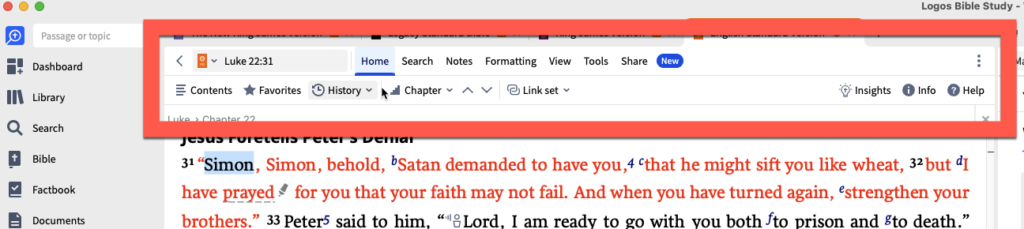
On the (1) Home section of the new toolbar (see screenshot # below), you’ll see an (2) Insights button. Click it to show information about your passage. You’ll see (3) Related books with your top commentaries about a Bible text, and (4) Related Passages taken from Cross Reference. There’s also a button to (5) Open a Passage Guide.
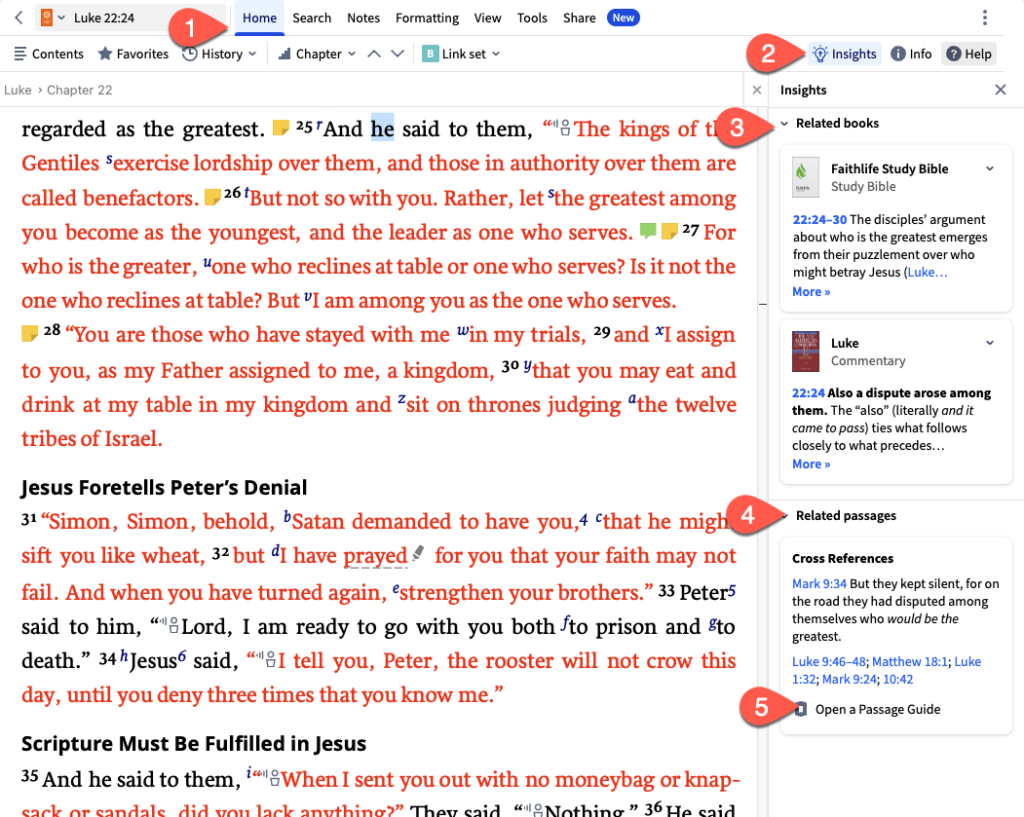
Click on the Help button to learn what the other parts of this window do.
The Summarize feature under the Tools section will help you save time by summarizing a passage or a book.
If you see a blue NEW button, that means you’re on the new Logos Early Access plan, which gives users the ability to access new features before a major release. You can subscribe to Early Access here.
Studying a passage using Logos’s AI tools
Open your Bible to a passage. We’ll use Luke 22:24–30 as an example. I like to read and re-read the passage in multiple translations. You could click the View button on the new resource toolbar and Add parallel texts. I have a predefined set that includes the ESV, CSB, NKJV, and LSB. I opened the Reverse Interlinear panel to add Greek study to this group. You can add anything you like.
Open Tool on the new resource toolbar and click on Compare to open a text comparison window. Add whatever books you want in that window using the translation dropdown box at the top of the text comparison window.
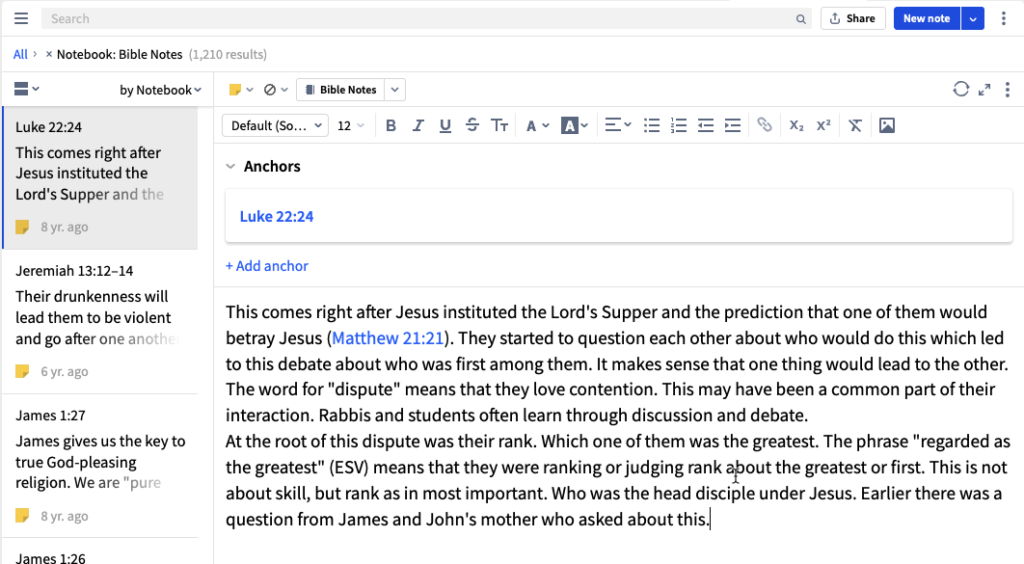
Once I’m done reading and re-reading, I go over the passage again and add a note to each verse or a range of verses. I can add observations answering the investigative questions like Who, What, Where, etc. and record those in a note.
When I’m done, here’s what my note on Luke 22:24 might look like.
Next, I add questions to answer in my research.
If you’re just studying for yourself, then go back to the Insights panel by clicking the Home button on the new Resource Toolbar. Click on Insights in the second row. Read about your passage in the books it shows and look up the passages in the cross references. If you wish to go deeper, open a Passage Guide from the link at the bottom of the Insights panel.
(As a side note, I wish Logos also included a quick link to the Exegetical Guide, because I believe we should start with language tools in our study before opening commentaries to see what others concluded from their study—commentaries should help you answer questions you couldn’t find in reference tools like language study tools, atlases, cross references, and dictionaries. After consulting these, you’ll already know the meaning of a passage. At that point, you should open the Passage Guide and study information found there to confirm or extend your understanding of the passage.)
One section of the Passage Guide gives links to open commentaries on your passage. Open one of your favorites. Click on Tools in the resource toolbar and then Summarize. You’ll see a new summarization panel open on the right. There’s probably a list of articles to read. Click one and then click on the blue icon with the star inside. (See screenshot below.)
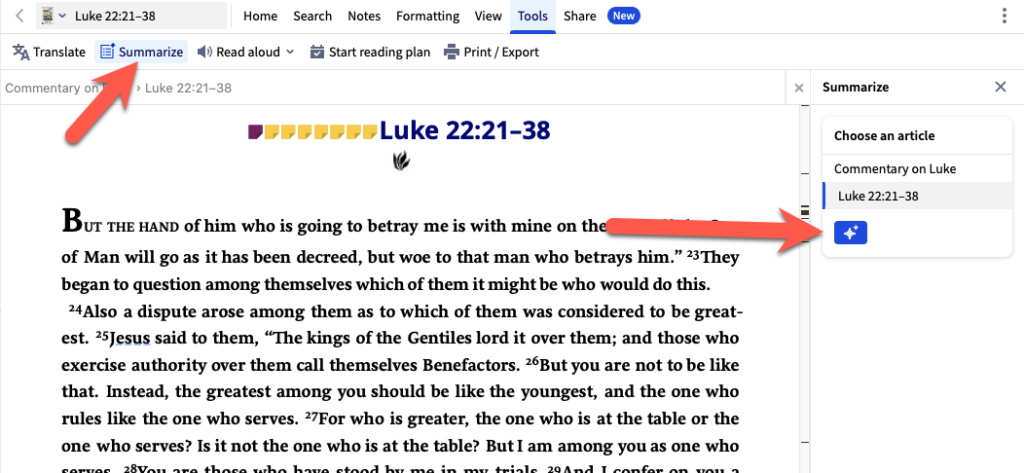
This summarizes the commentary article about this passage. At the bottom, you’ll see a link to summarize another article. Click it to bring up the rest of the articles and choose a new one to summarize. Don’t forget to record your findings in your note on the passage.
Other parts of the Passage Guide include the following:
- Journals
- Biblical Places, People, Things, and Events
- Theological tools
- Sermons and Outlines
- Media like music and images
Topic and word studies in Logos using AI
Like the tools used above in our passage study, Logos AI can help you save time in understanding word studies and topical studies. We will look at a topic guide on greed. Open the Topic Guide from the Guides/Workflows menu item. Enter “greed” in the search box at the top of the window. (See screenshot below.)
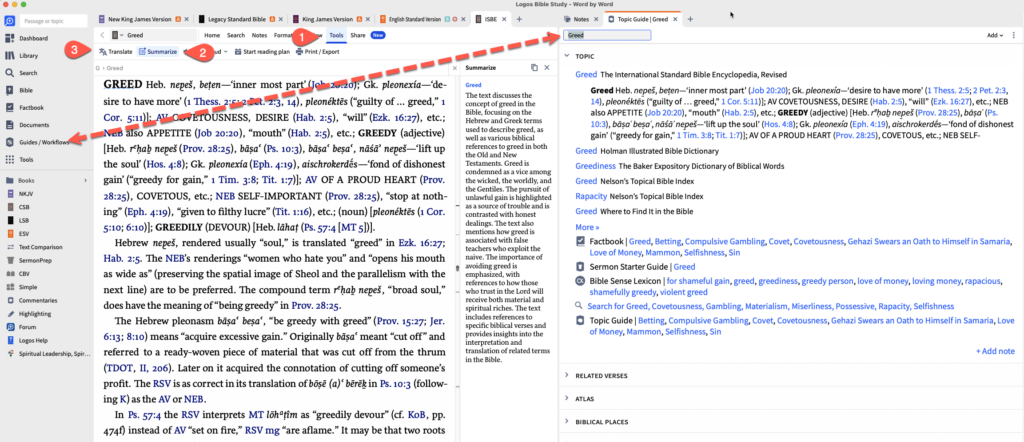
You’ll see a lot of tools just like the Passage Guide. As you open various options in the Guide’s list, click on Tools (#1 in screenshot above) again from the resource toolbar. You’ll see Summarize (#2 in screenshot above), which summarizes the article in the window. There’s a Translate (see #3 in screenshot above) option which you can use if the book is written in a language you don’t read. Both use AI to help you translate or summarize the article or book.
Preparing a sermon or Bible study with Logos AI tools
The above steps may not illustrate an exhaustive list of Bible study or sermon study steps. We mainly focused on the way AI can help you quickly see what your library offers about a passage. Now, let’s look at how the AI built into Logos will help you share your findings with a small group, congregation, or in writing.
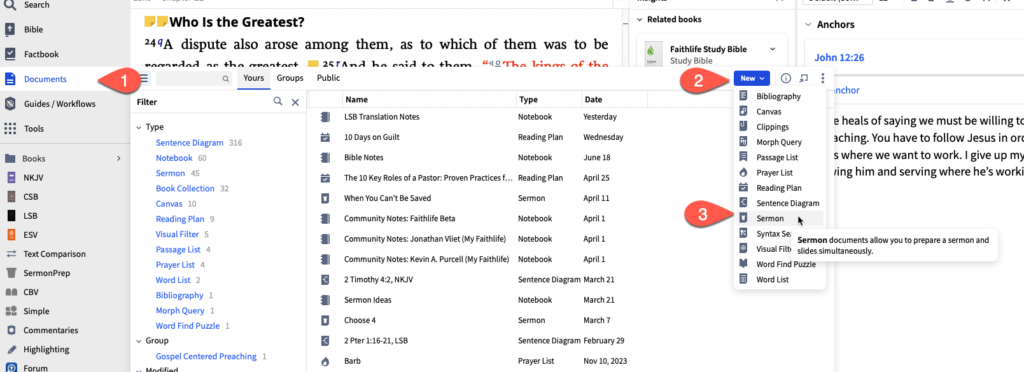
Start by clicking on Documents in the toolbar along the left or the top (if you moved it there). Click on the New button which drops down a menu. Choose Sermon to open a new sermon document. (See steps in the screenshot above.) You now have a blank sermon ready for you to work.
Along the right you see a window with five buttons on the toolbar. The Info button, which looks like a circle with the letter I inside it shows the Sermon Info panel. Add your information there.
Other buttons include:
- Sermon Notebook: Add notes to your sermon for your own benefit.
- Version History: Shows the versions of your sermon so you can go back if you make mistakes.
- Popular Quotes: Add quotes from various books in your library related to a passage, word, or topic.
- Sermon Assistant: See below for information since we’ll focus on this the most.
We won’t focus on all the details for every aspect of the Sermon Builder. You can find more information on the Logos website. Let’s focus on the Sermon Assistant. To see it, click on the Sermon Assistant button on the small toolbar in the right-hand panel inside the Sermon Builder. It looks like a star with a smaller star to the upper right.
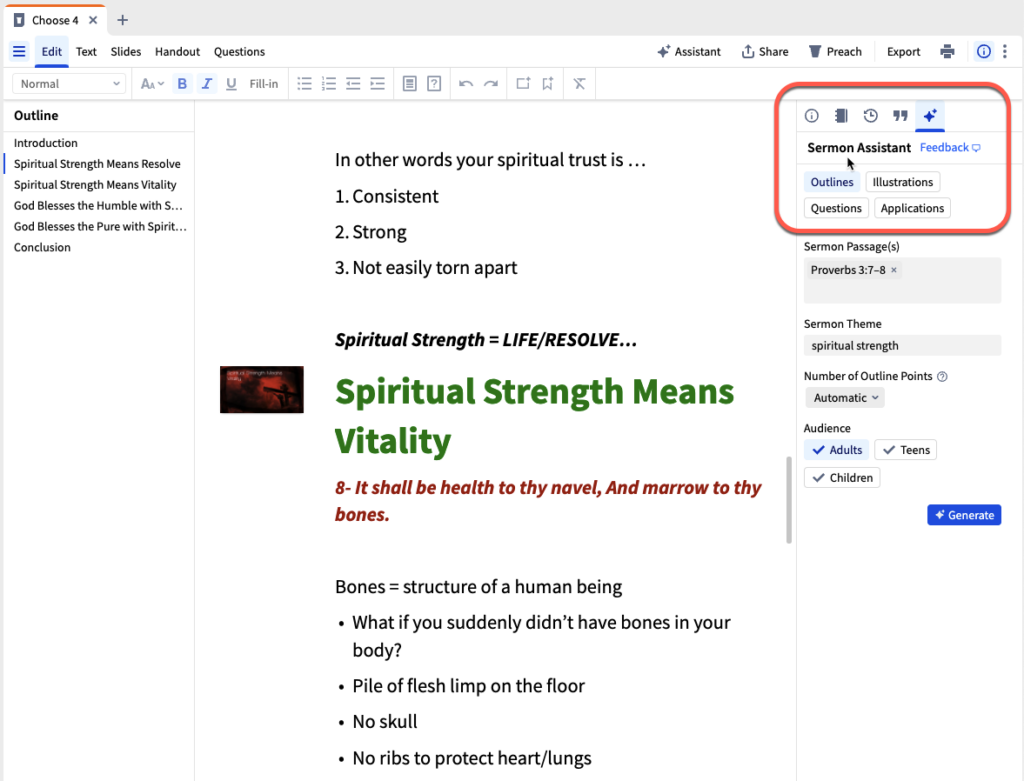
The Sermon Assistant includes four AI-assisted tools (see screenshot above):
- Outlines: Takes your passage and generates an outline.
- Illustrations: Takes your idea entered in the included Idea box and comes up with an illustration based on the Tone, Type, and Audience.
- Questions: Creates questions for discussion for a Bible study group or a handout for a sermon you’ve written based on the Type of questions and the Audience for the message or study.
- Applications: Takes your Idea entered in the included Idea box and generates ideas for Application based on the Situation and Audience you provide.
After you enter a passage or idea depending on which Sermon Assistant tool you’re using, click on the Generate button and Logos will use AI to create results. You can use these results to inspire your work. Learn more about the AI tool in the Logos forums. Mark Barnes from Logos explains it here.
Do not just take what’s offered and copy/paste without editing. Make it your own. The design for this tool from Logos isn’t to replace your creativity, but to supplement it. As Barnes explained in his post linked above,
“The illustrations aren’t intended simply to be copied and pasted into your sermon but rather to help overcome creative block by stimulating fresh ideas.”
Smart Search to the rescue
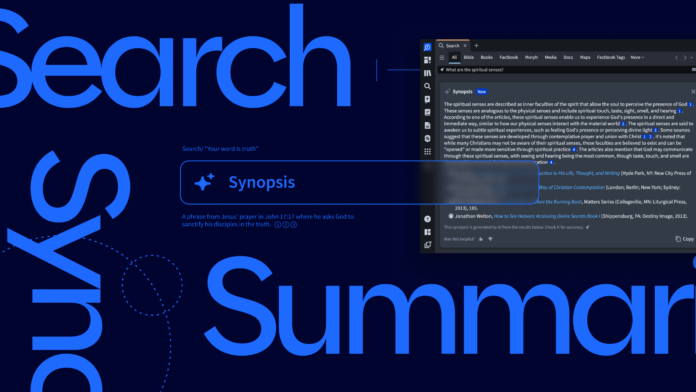
If you need help finding a passage or topic for study, the new AI-assisted Smart Search can help. This shows up in both All Search and Books Search. Use natural language to search instead of complicated Boolean searches. You’ll get what Logos calls a synopsis of the most important information found. With one click the program’s AI tools will summarize the results.
Open a search window by clicking Search on the program’s toolbar on the left or top of the screen, depending on your settings. You could also drag the search button to where you want your search window.
You’ll notice the AI indicator in the search box of the search window if this Smart Search is available. Right now, it only shows up in All or Books searches.
An information tip box tells you what you can do to search. Notice it says, “Enter your query using short questions or keywords …” which means use natural language to search.
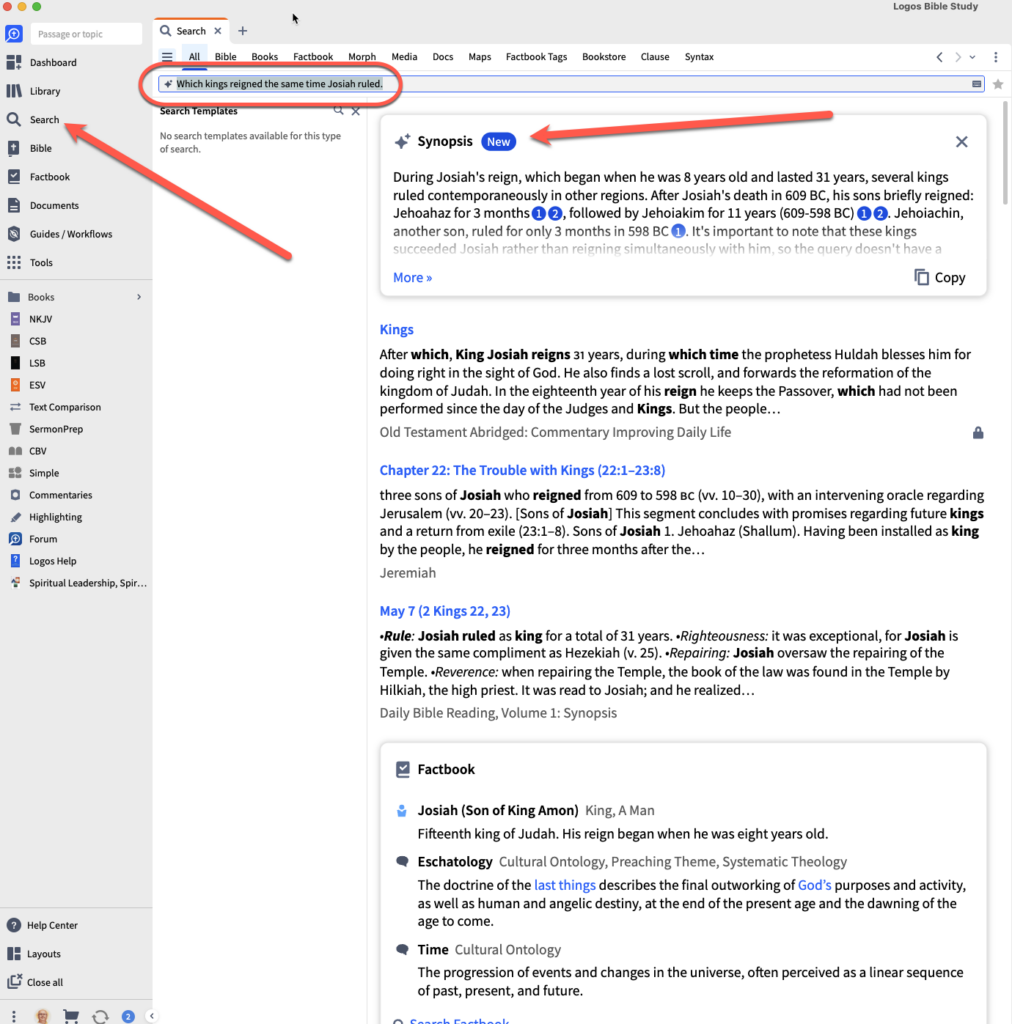
Notice in the screenshot above we did a natural language search asking, “Which kings reigned the same time Josiah ruled?” The search resulted in several entries about kings from several books that I own and don’t own. In other words, Logos will search your library and other books that Logos offers.
The most interesting results sit at the top. You will see the synopsis with the AI icon and you might see the word New in a blue rounded box. Click More to see the full synopsis. In our example, we see two numbers in blue circles. Below the synopsis, you see the source for the synopsis. You can click to open them if you own them. If not, then you can buy them. Scroll down to see other results.
The fact that you can test the validity of the synopsis with footnotes to the sources, gives the user more confidence than one might experience with a Google search or using AI-chat tools.
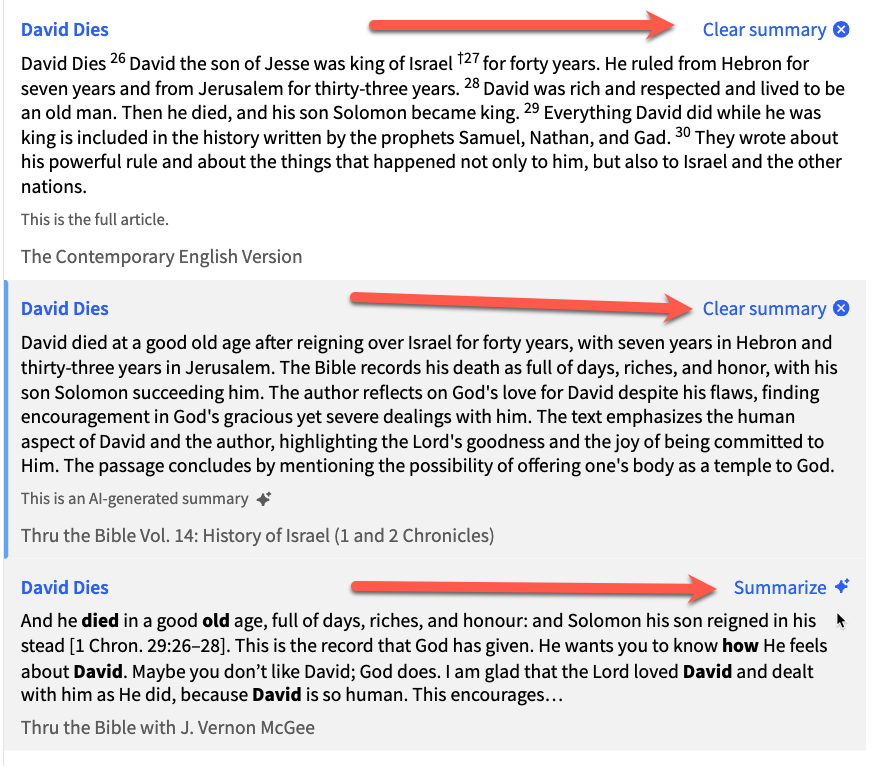
The entries listed in your Smart Search results each have a Summarize button that you’ll see when you hover over the article. Click it to get an AI-generated summary of the article. Some results show the “full article,” but others will show “an AI-generated summary” as seen in the screenshot above.
As we said above, the Books tab also uses Smart Search. Use this to limit the search we performed to your own library.
If you like, you can copy the synopsis and paste it into a Note on your passage or create a new topical note.
Maybe you’re not happy with the Smart Search. You can turn it off using the button in the upper right of the search window. There’s a dropdown list with Smart and Precise. Switch to Precise to turn off Smart Search.
Get Logos now
If you’d like to get Logos 10, you can use my affiliate link to buy it before it disappears for good. You can score some amazing deals right now before the next version of Logos launches. Be sure to check them out. Plus, Logos has announced L10 owners will get special perks and pricing. Getting at least Logos 10 Gold ensures you’ll get access to the best discount when the subscriptions launch.
Things will change with the Logos fall launch. But as a Logos 10 owner, you’ll earn special pricing on the three subscription tiers based on the package you own. The tiers and special pricing are:
- Logos Premium (requires Logos 10 Bronze or higher): $6.99/month or $69.99/year.
- Logos Pro (requires Logos 10 Silver or higher): $9.99/month or $99.99/year.
- Logos Max (requires Logos 10 Gold or higher): $12.99 or $349.99/year.
Which should you subscribe to? Here’s my recommendation:
- Logos Premium will include what you need to study the Bible as a lay person who wants to go a little deeper. Maybe you teach Sunday school or a small group. Get Premium to save money since you don’t really need to prepare sermons or do more advanced Bible study.
- Logos Pro will add deeper Bible study tools to prepare pastors or other ministers. If you write Bible studies or want to dig deeper into the original languages, then go Pro.
- Logos Max costs the most and gives you the most. Do you write academic papers for research in your doctoral studies? Maybe you’re a professor or scholar who does heavy translation or research. If so, you need Logos Max.
The average person should probably be okay with either Premium or Pro. A small collection of people need the Max subscription.